 Gumroad



 Polar
 Kelviq
 Stan

Guide
Your EXNO dashboard: where everything is
Everything you need to run your store is in one dashboard. This tour shows where each part is, with short clips from a real EXNO store.
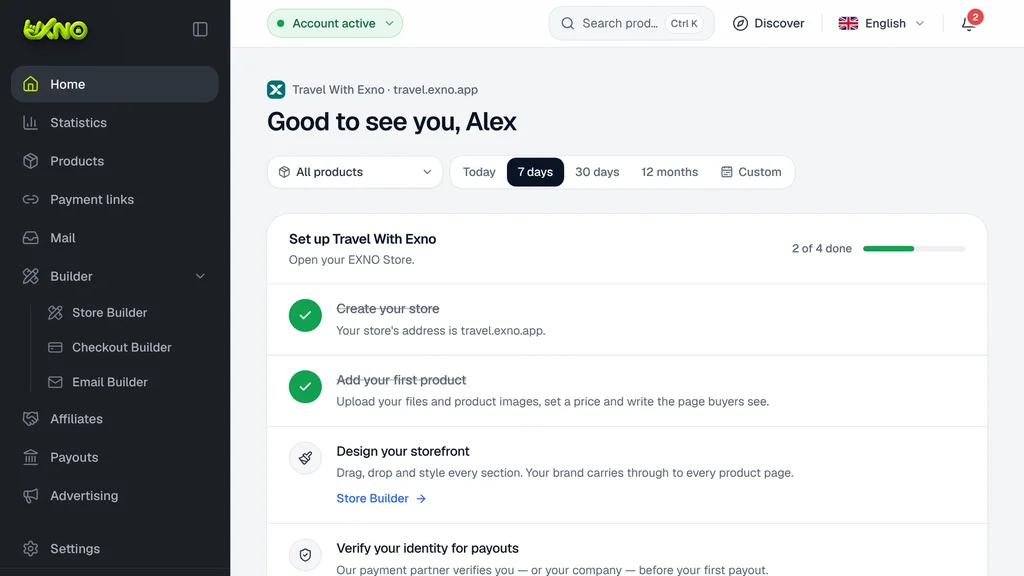
The bar at the top
Search finds products, orders, buyers' emails, discount codes, payment links, subscribers, payouts and dashboard pages. Press Ctrl K (⌘K on a Mac) from anywhere in the dashboard.
The bell collects sales, messages and payout news as they happen. Account active shows your account's status and what's left to set up before you can sell and get paid. The flag switches the dashboard between English and Turkish, and Discover opens EXNO's marketplace.
Your stores, help and EXNO Support
Your store's name at the bottom of the sidebar opens the store menu: switch between your stores, open a new one for another brand, go to account settings or log out.
The Help Center answers the common questions. Messages, at the bottom of the screen, holds your conversations with buyers and with EXNO Support: EXNO AI answers at once, at any hour, and EXNO's team joins the conversation when it's needed.
Frequently asked questions
Can I have more than one store?
Yes. Open the store menu at the bottom of the sidebar and choose New store. Each store has its own address, design, products and email address, and you switch between them from the same menu.
How do I reach EXNO?
Open Messages at the bottom of the dashboard and write to EXNO Support: EXNO AI answers right away and the team joins when needed. You can also email support@exno.app.
Does the dashboard work on a phone?
Yes. Every page works on a phone; the sidebar opens from the menu button at the top left.


Open your dashboard
Sign in and take a look around: everything above is one click away.
Keep reading
Guide
How to add a product to your EXNO store
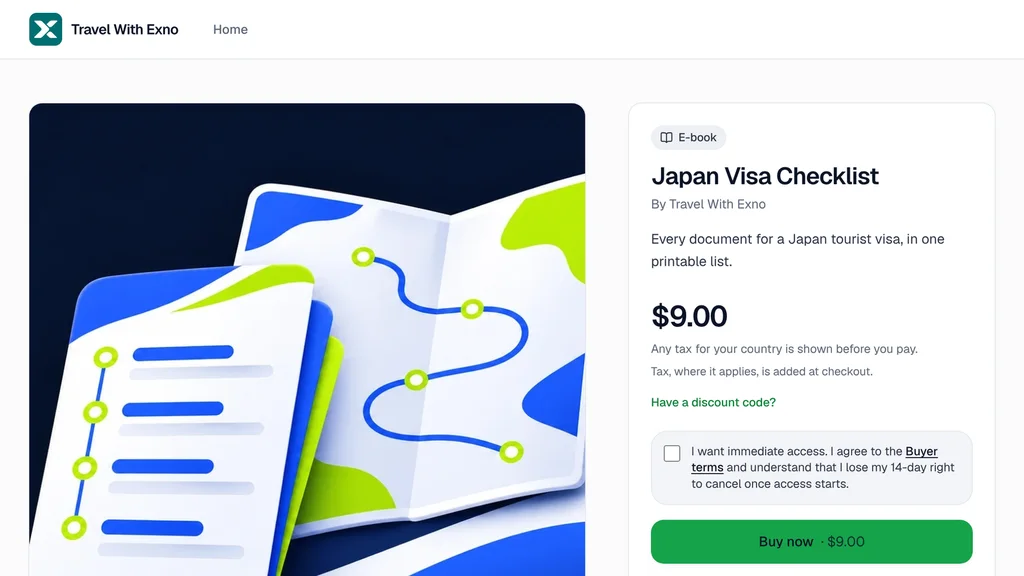
Adding a product takes a few minutes: you create it, write the page buyers see, set a price, add a cover and the files buyers get, and publish. The clips below show every step in a real EXNO store, Travel With Exno, as it adds a Japan visa checklist.
Read the guide
Guide
Where should you sell your digital products?
The best platform to sell digital products depends on what you deliver, how buyers find it, and who should handle the transaction. Shortlist Etsy for original digital designs, Shopify for a shop that also ships goods, Gumroad for direct creator sales, and EXNO for a mixed digital catalog with a storefront and marketplace.
Read the guide
Guide
What to do when a buyer disputes a digital product sale
Chargebacks on digital products happen when a buyer disputes a card payment through their card issuer rather than simply requesting a refund. On EXNO, submit the evidence for each case through the Disputes page; EXNO adds the order records and handles the response, while the disputed sale’s earnings wait for a decision.
Read the guide