 Gumroad



 Polar
 Kelviq
 Stan

Guide
How to add a product to your EXNO store
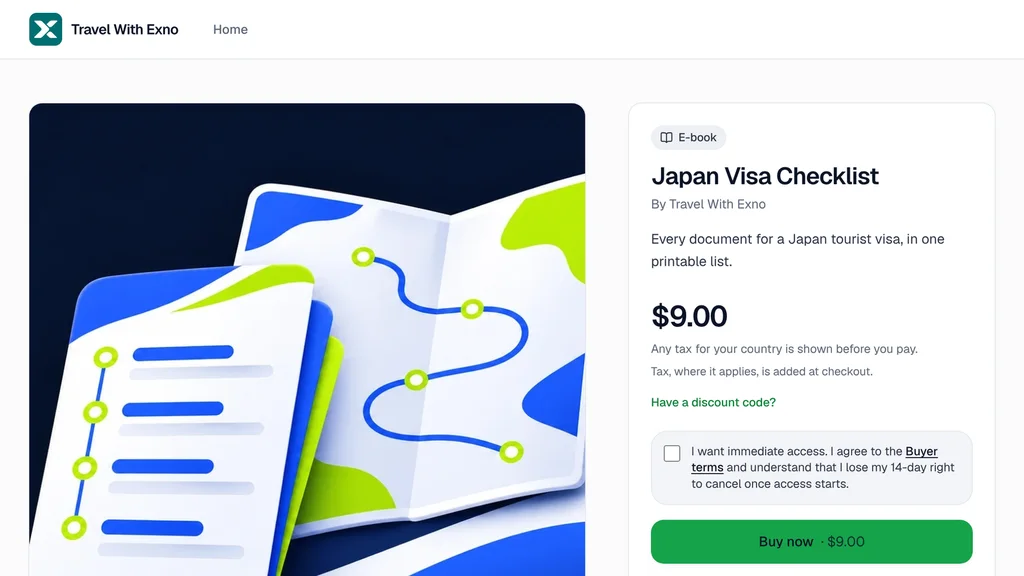
Adding a product takes a few minutes: you create it, write the page buyers see, set a price, add a cover and the files buyers get, and publish. The clips below show every step in a real EXNO store, Travel With Exno, as it adds a Japan visa checklist.
1. Create the product
Open Products in the sidebar and press New product. Choose what you sell — a digital product, course, e-book, membership, software, template, audio, video, bundle or service — and type its name. Press Create product: EXNO opens it as a draft, so nothing is public until you publish.
2. Write the page and set the price
Add a short summary: it shows on product cards and in search, up to 160 characters. Then write the description buyers read on the product page. It takes headings, bold text, quotes, links and lists: start a line with a dash and a space for a bulleted list.
Set the price under Pricing. EXNO shows what you earn per sale right below it as you type. You can also let buyers pay what they want: your price becomes the suggestion and you choose the minimum, where 0 makes the product free. When you change something, press Save in the bar at the bottom of the screen.
3. Add a cover and the files buyers get
Under Product images, press Add images. Square pictures of 1200 × 1200 px or larger look sharpest; you can add up to 8 and the first one is the cover in your store and on Discover.
Under Content, drop the files buyers get or press browse: up to 20 files of up to 5 GB each — PDFs, e-books, ZIP archives, videos, audio, templates and more. Buyers can download them right after paying.
4. Choose a category and publish
Keep Show on Discover on to list the product on Discover, EXNO's marketplace, and search for its category — Travel Planners for this checklist. Go as deep as the categories go: buyers browse by category, subcategory and sub-subcategory.
The first time you publish, read and accept the Seller agreement. Then press Publish. The product is live, and its status changes from Draft to Published.
5. See it in your store
Press View page to open the product's own page in your store's design: the cover, the price, the description, what buyers get and the Buy now button. Share the product link anywhere — social media, your newsletter, your bio — or put the product on your own website with a payment link.
Frequently asked questions
Can I change a product after publishing it?
Yes. Change anything and press Save: the product page updates at once. Unpublish takes a product offline without deleting it, and you can publish it again later.
What can I sell?
Digital products of every kind: e-books, courses, templates, presets, software and licence keys, audio, video, memberships, bundles and services. Each product holds up to 20 files of up to 5 GB.
Do I need to design my store first?
No. Every store starts with a clean design that your products fit into. Change colours, fonts and sections whenever you like in Store Builder.
What does EXNO charge?
Standard sales: 7%. Discover sales: 7%. Additional fees may apply to payment processing, payouts and other transactions. See the Seller Agreement for current fees and terms. The Pricing card shows an estimate for the price you enter.


Keep reading

Guide
Where should you sell your digital products?
The best platform to sell digital products depends on what you deliver, how buyers find it, and who should handle the transaction. Shortlist Etsy for original digital designs, Shopify for a shop that also ships goods, Gumroad for direct creator sales, and EXNO for a mixed digital catalog with a storefront and marketplace.
Read the guide
Guide
What to do when a buyer disputes a digital product sale
Chargebacks on digital products happen when a buyer disputes a card payment through their card issuer rather than simply requesting a refund. On EXNO, submit the evidence for each case through the Disputes page; EXNO adds the order records and handles the response, while the disputed sale’s earnings wait for a decision.
Read the guide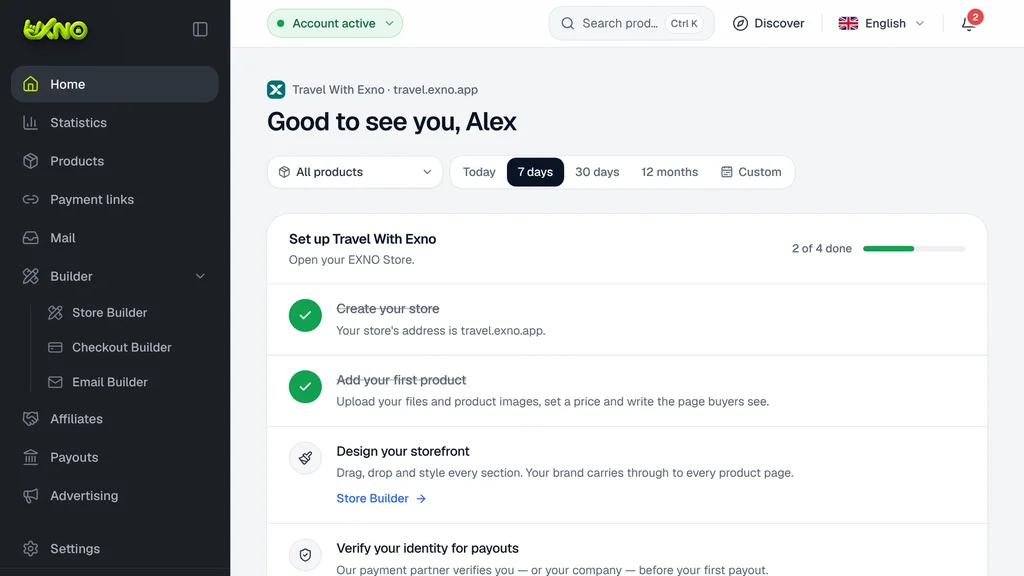
Guide
Your EXNO dashboard: where everything is
Everything you need to run your store is in one dashboard. This tour shows where each part is, with short clips from a real EXNO store.
Read the guide