 Gumroad



 Polar
 Kelviq
 Stan

Selling guide
How to sell a digital planner people can actually use on a tablet
To sell digital planners, deliver a hyperlinked PDF that lets someone find a date, write on it, and return to the index without scrolling through the whole year. Show that journey before checkout, label every edition, and tell buyers which tablet and note app you actually used to check it.
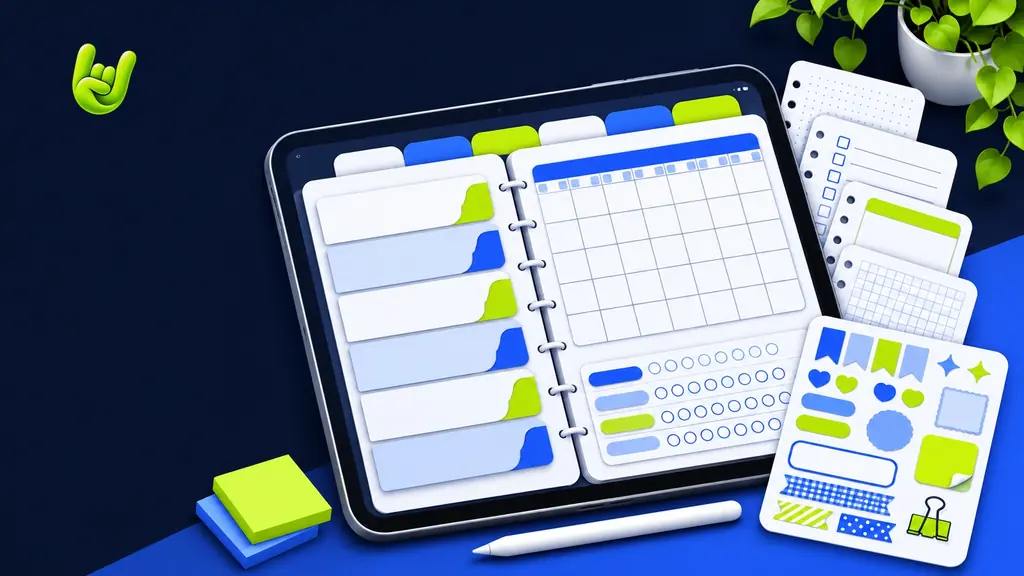
Which planner would someone reach for every week?
Choose a recurring decision rather than a decorative theme: a shift worker may need to see an overnight shift and the following morning together, while a freelance illustrator may need project milestones beside weekly tasks. Design the shortest route from the opening screen to that decision before adding covers, trackers or stickers.
| Edition | Useful to | What to demonstrate |
|---|---|---|
| Dated calendar | Someone who wants to tap a date and start writing immediately. | Jump from a month to a week that crosses into the next month, then return. |
| Undated project planner | Someone starting a project midyear or using only a few weeks at a time. | Set up a project, use a spare notes page and explain which navigation stays fixed. |
| Planner plus stickers | Someone who repeatedly marks shifts, invoices or appointments. | Place one individual sticker without importing an entire sheet as a single image. |
A printable promises the page will work on paper. A tablet edition promises navigation and room to write on glass. If you also sell a paper version, describe it separately rather than counting it as another compatible tablet app. See the guide to selling printables for the paper workflow.
How do you make the PDF and stickers easy to use?
Give the buyer one clearly named planner PDF, a short start guide and optional sticker files in a separate folder. The PDF should contain working page destinations, while the guide explains which file to open, how to follow a tab in the tested app and how to get back to the index.
Build a navigation map before duplicating pages
Sketch four destinations: index, month, week and notes. Put the return control in the same place on each layout. Give a link its own hit area outside the writing box so a handwritten entry does not begin on top of a tab. Start with one linked month; a mistaken destination is easier to fix now than after twelve copies.
Keep an editable master separate from the customer PDF. Goodnotes distinguishes an editable PDF export, which preserves original links, from a flattened export, which does not.2 Whichever design tool you use, open the exact exported file to check what survived. A screenshot of a colored tab proves nothing about its destination.
Keep the sticker option genuinely optional
Export the reusable artwork as individual transparent PNGs if that is what your listing promises. Check a light sticker on a dark page and a dark sticker on a light page for unwanted white boxes or clipped edges. Give it a useful filename like night-shift.png. Include a contact sheet as a preview, clearly labeled so it is not mistaken for the import file.
Goodnotes supports creating Elements collections from images.4 Test the exact steps you show before naming an app-specific collection in the listing. For artwork or fonts you did not make, check that your permission covers this distribution; a reusable PNG is a different deliverable from a picture flattened into a page.5
What should you test on the tablet before charging?
Test a fresh import of the retail download on every app and device combination you advertise. Record the app version, edition, orientation and result; opening a PDF is not the same as navigating it, writing comfortably at normal zoom or keeping the annotations when the buyer reopens the note.
- Check the calendar join. For a dated edition verify the year, weekday headings, month lengths and any extra week row. Test every month tab; then check a month-ending week and, for a leap year, February 29. Repeat for Sunday-start and Monday-start files if you sell both.
- Trace paths both ways. Follow the index to a middle month, open its first and last linked week, and return. Audit all named destinations in the finished edition; sampling on a device adds a usability check, not a replacement for checking the whole link map.
- Write, close, reopen. Add a short note near a page edge. Switch away, reopen the note and return to the same week. Add an individual sticker, move it and resize it. If you promise a native app file as well, repeat the test for that file.
- Document app differences. In Goodnotes the PDF needs to contain the link already; its help page distinguishes the gestures or modes used by platform.1 Notability documents PDF import.3 That alone does not establish support for every feature in your particular export.
How should you price and list the editions on EXNO?
Price the change in usefulness and show it in the listing: a second cover is not the same as a second working orientation, and a dated edition requires a calendar audit rather than just a change of artwork. Pick one clear base product before asking a buyer to choose an upgrade.
Illustrative offer: a $14 dated planner and a $4 appointment-sticker pack would cost $18 separately. A $16 bundle saves the buyer $2. Show the actual folder contents for each choice. If the buyer already gets the stickers in the bundle, do not suggest that same pack again at checkout.
- Create the digital listing. State year or undated status, week start, orientation, included formats, tested app versions and personal-use terms. Say whether a tablet, stylus or note app is included; normally the purchase contains just the files.
- Show a real page in use. Put one filled-in fictional week, one blank spread and a close-up of the tabs in your EXNO store gallery. Obscure personal entries or make a demonstration copy. Include a short recording of the route to a date if helpful.
- Design the handoff. In EXNO’s email template editor, preview the delivery message on a narrow screen. Lead with the planner filename, tell buyers where the optional artwork lives, and point them to the start guide rather than greeting them with a list of every variant.
- Offer the relevant extra. Use an order bump for the separate sticker pack only on the planner-only offer. Describe its contents in plain words. Compare product views, checkout opens and purchases before adding more editions; repeated questions about week starts suggest a labeling problem, not a need for more designs.
EXNO handles applicable buyer transaction taxes, refunds and disputes as merchant of record. Standard sales: 7%. Discover sales: 7%. Additional fees may apply to payment processing, payouts and other transactions. See the Seller Agreement for current fees and terms. Eligible earnings follow the published payout schedule and account requirements.
Which listing mistakes cause avoidable support requests?
The costly mistakes are usually mismatches between what a buyer sees and what the files do: a screenshot looks linked but is flat, a Sunday-start cover contains Monday-start weeks, or a sticker sheet is sold as separate stickers. Check those promises against the final download, not your design master.
- “Works everywhere.” Replace it with a device, app version and test date. Put untested formats or platforms outside the compatibility claim.
- “New version” without instructions. Say whether the update is a corrected blank planner or an extra page. Never ask buyers to delete their only annotated copy.
- A crowded preview. Show the amount of writing space at normal zoom. A cover and a fan of thumbnail pages leave buyers guessing about everyday use.
Mark the release with a square from your calendar
A single colored square can stand for the day you finished your first planner: a blue workday, a lime deadline or the first blank day after a launch. The EXNO Pixel Wall lets you choose a rectangle, give it a title and use a solid color or an image of your own.
Each pixel costs $1, and approved designs stay on the wall. Mark your release on the EXNO Pixel Wall if you would like to support the platform’s growth.

Frequently asked questions
A planner buyer needs to know three things before paying: whether the file works in their app, what they can change, and what happens to their notes if a revised edition appears. Answer those questions for the edition you actually ship rather than for digital planners in general.
Can I advertise a planner for both Goodnotes and Notability?
Name both if you have tested the specific release in both. Check the import, navigation and writing experience separately; do not treat PDF import as evidence that every tab or sticker pack works.13
Does an undated PDF automatically generate calendar dates?
Not merely because it is undated. If the buyer fills in the dates by hand, say so and show a filled-in example. Do not promise a calendar integration that the product does not include.
Do digital stickers have to come with the planner?
No. A complete planner can work without decorative extras; if stickers are included, explain whether buyers receive individual images, a sheet, or an app-specific collection.
Does a corrected PDF replace a buyer’s handwritten notes?
Treat the revised blank file and the buyer’s annotated note as separate documents. Advise the buyer to keep the original, and test any copying procedure in the named app before recommending it.
General information, not tax or legal advice.
Sources
The app developers describe how imports, link gestures, PDF export and reusable elements work. Use their documentation to write accurate instructions, then verify your own files on a tablet: a supported file format does not establish that a particular page link or sticker was exported correctly.
- Goodnotes: following existing PDF links on each supported platform· checked 20 November 2026
- Goodnotes: export options and when original PDF links are lost· checked 20 November 2026
- Notability: importing a PDF as a new note· checked 20 November 2026
- Goodnotes: creating collections from images and importing elements· checked 20 November 2026
- WIPO: permission and licensing when using other people’s work· checked 20 November 2026


Start with the edition you would plan a week in
Choose one week start and one orientation, then put the tested PDF, its start guide and a real navigation preview on a single product page. A buyer should be able to recognize the correct file without opening every folder in the download.
Keep reading
Selling guide
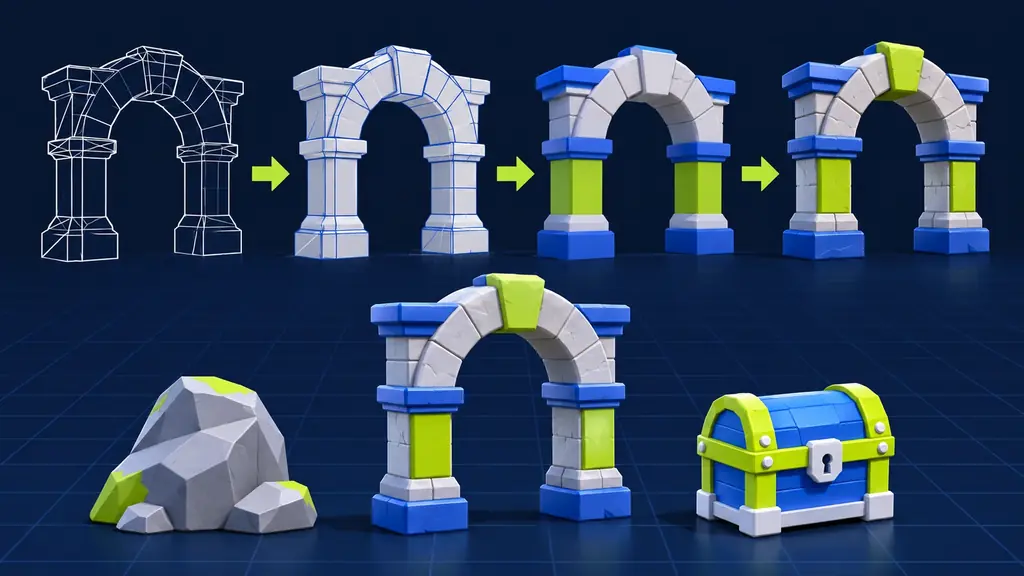
How to sell 3D model packs that survive a buyer’s first import
To sell 3D models, define the buyer’s use, test the exported asset in that environment, and package the geometry, textures, documentation and license together. Sell the result as a digital download on EXNO. A studio buying modular game scenery needs different evidence from a designer buying a still-render prop or a maker buying a printable part.
Read the guide
Selling guide
How to sell finished AI-assisted art without overstating the rights
To sell AI art, start with a finished visual product you created or have permission to sell, check the model and asset terms, and give buyers accurate files and usage terms. A customer purchasing a background set should know its pixel dimensions, what you edited, what they can use it for, and whether they are buying images or a tool that makes them.
Read the guide
Selling guide
How to package AI automation templates buyers can run themselves
To sell n8n templates, package an original workflow with its input format, setup instructions, a safe sample, and a result the buyer can check before enabling it. Make and Zapier use different ways to share automation, so sell the edition you actually tested. The buyer supplies their own authorized accounts and keys; the download is not a running service.
Read the guide